

Playlisting
This section will help you create playlists using the MassiveMusic Playlist Tool, and then integrate them into your music service via the MassiveMusic Playlist API.
Jump to a section:
Device informationFor the optimal experience, we recommend using the playlist tool via a desktop, laptop or tablets with a large screen size.
Follow the steps below to create a playlist and add tracks to it using the MassiveMusic Playlist tool:
STEP 1
To create a playlist, select ‘Create New Playlist’ and select the relevant usage type
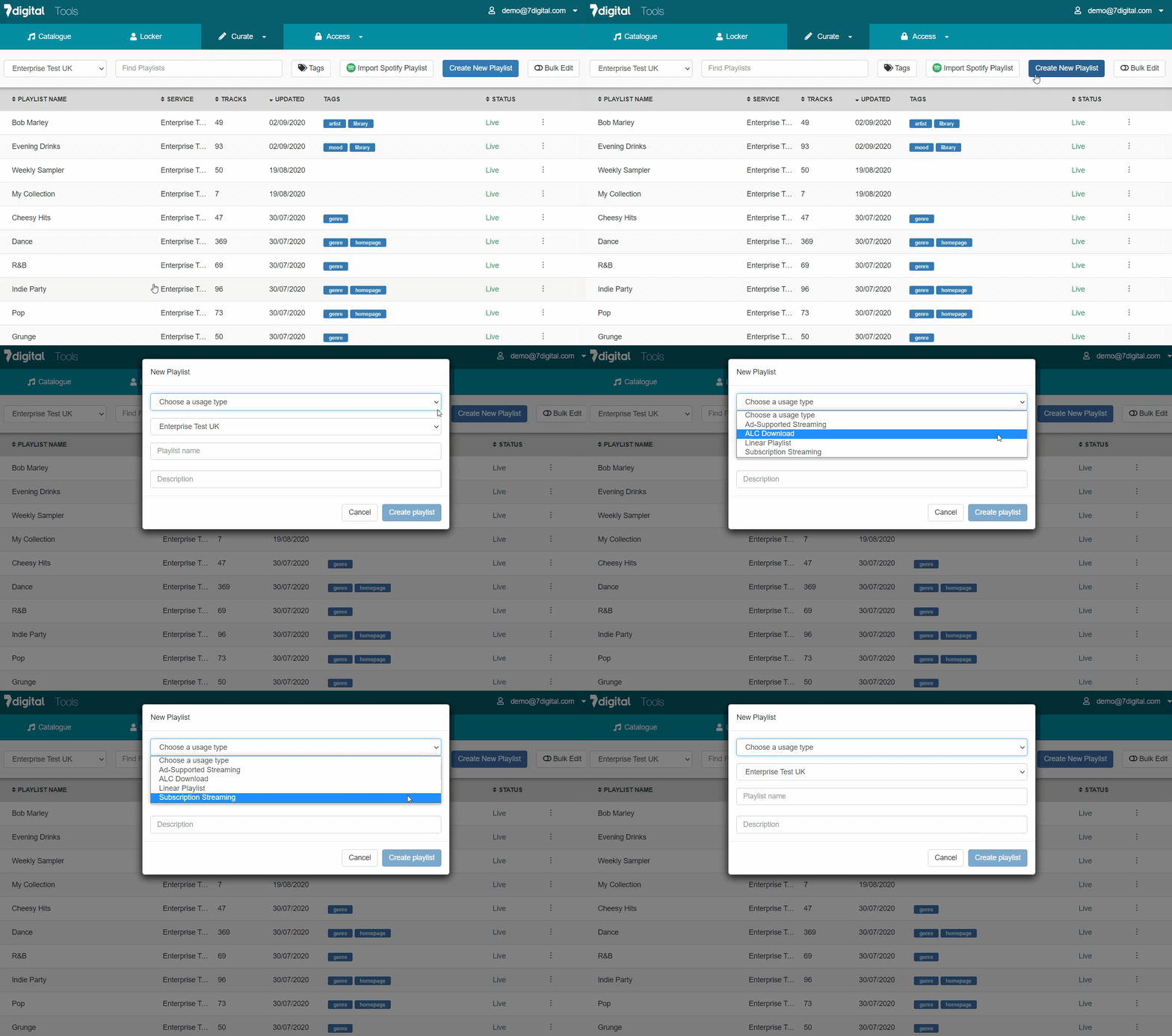
Usage TypeIt's important that you select the correct usage type for your service, as content is supplied to MassiveMusic and made available accordingly.
If you are unsure of which usage type you need to choose, please refer to your licence agreements or alternatively contact your Client Success Manager.
STEP 2
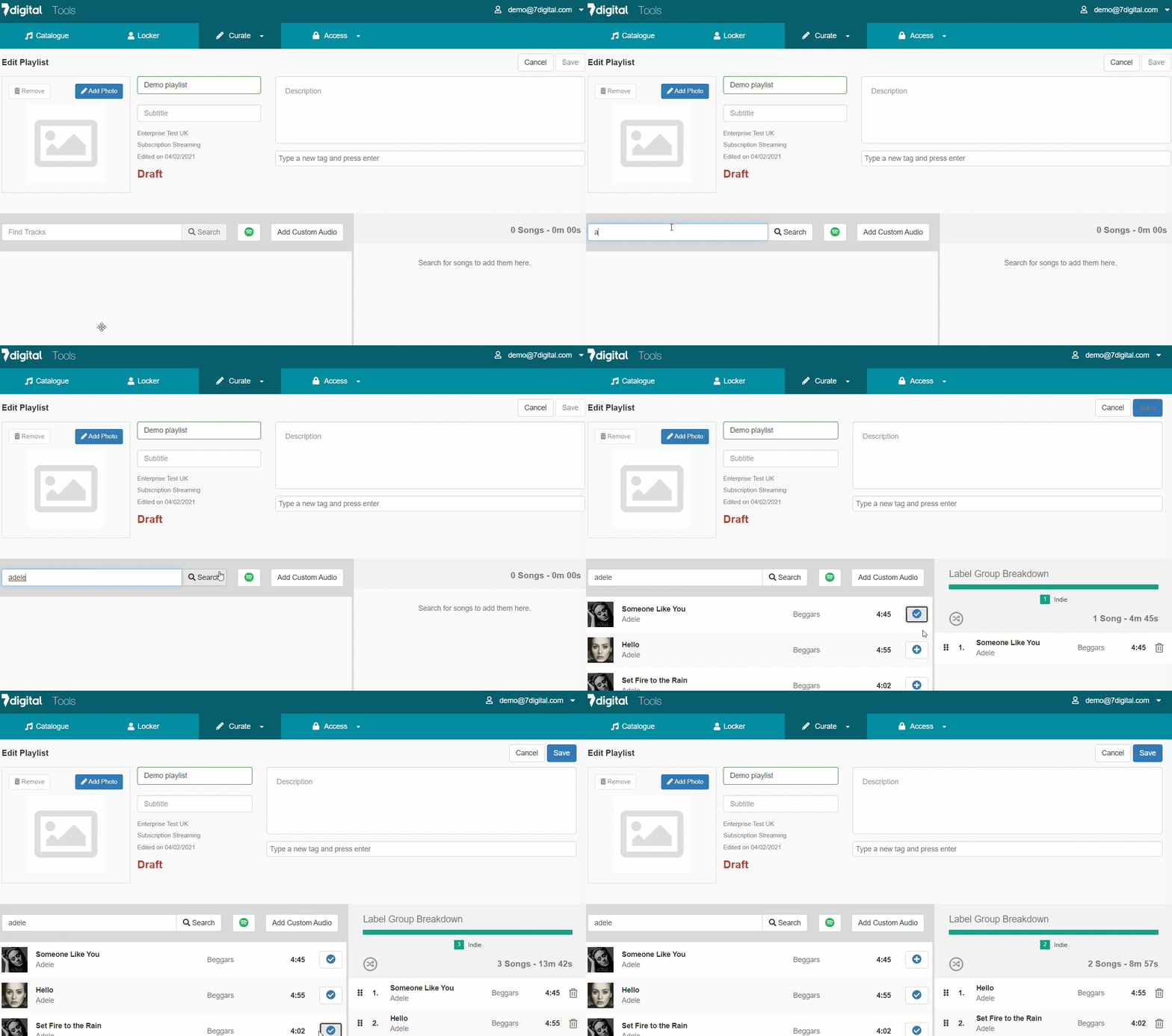
Add tracks to your playlist using the ‘Find Tracks’ search box. You can search for either Tracks or Artists.
- To add the track to your playlist, click on the +
- To remove the track, click on the ‘trash can’.
RestrictionsDue to record label restrictions, not all tracks/artists may appear in your search. Please refer to your available licenses to establish any content restrictions. Alternatively, speak to your Client Success Manager.
STEP 3
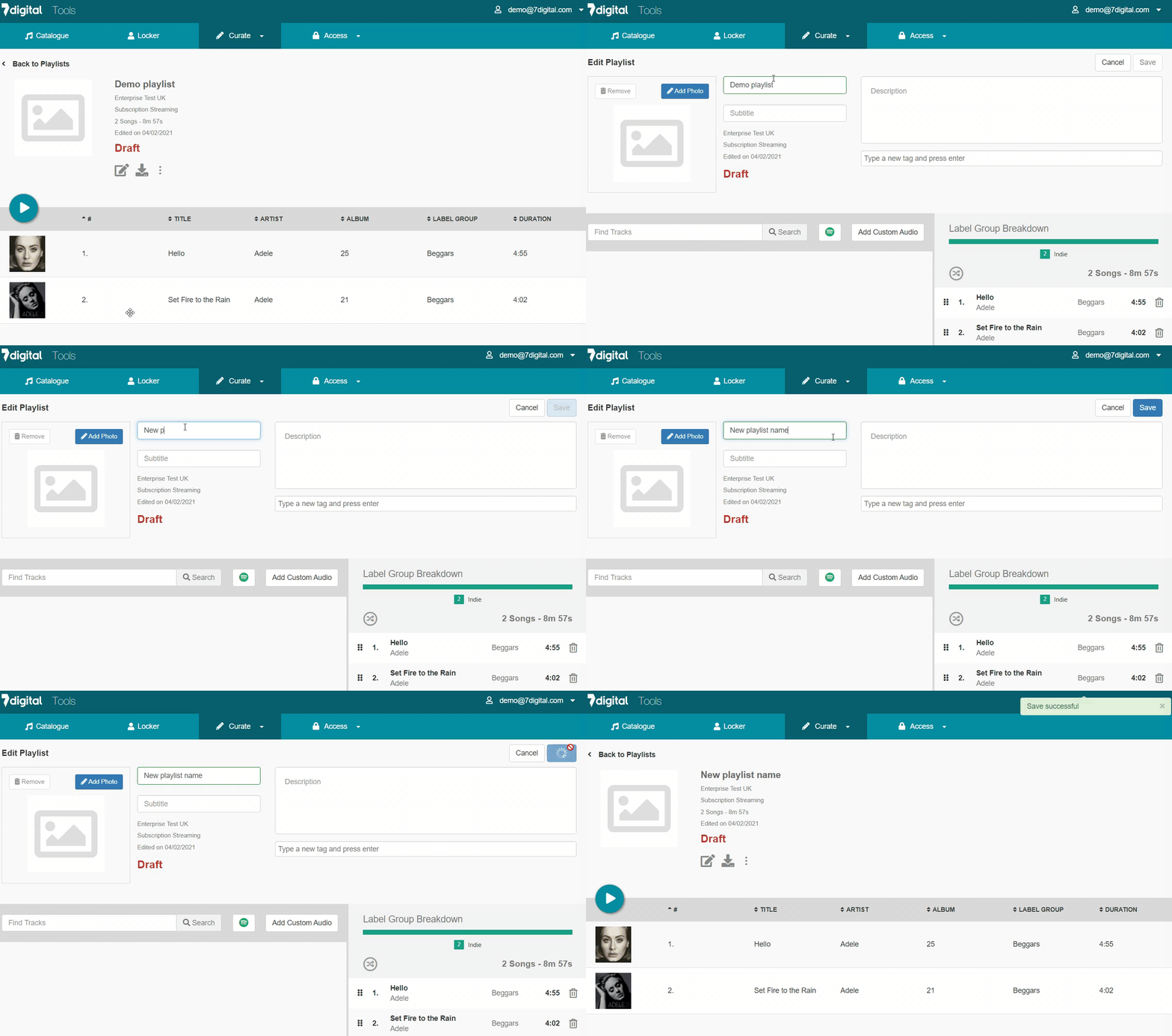
Once you have selected all of your tracks, click the ‘Save’ button in the top right corner. Your playlist has now been created. If you wish to edit the list, click on ‘Edit’ as shown below.
STEP 4
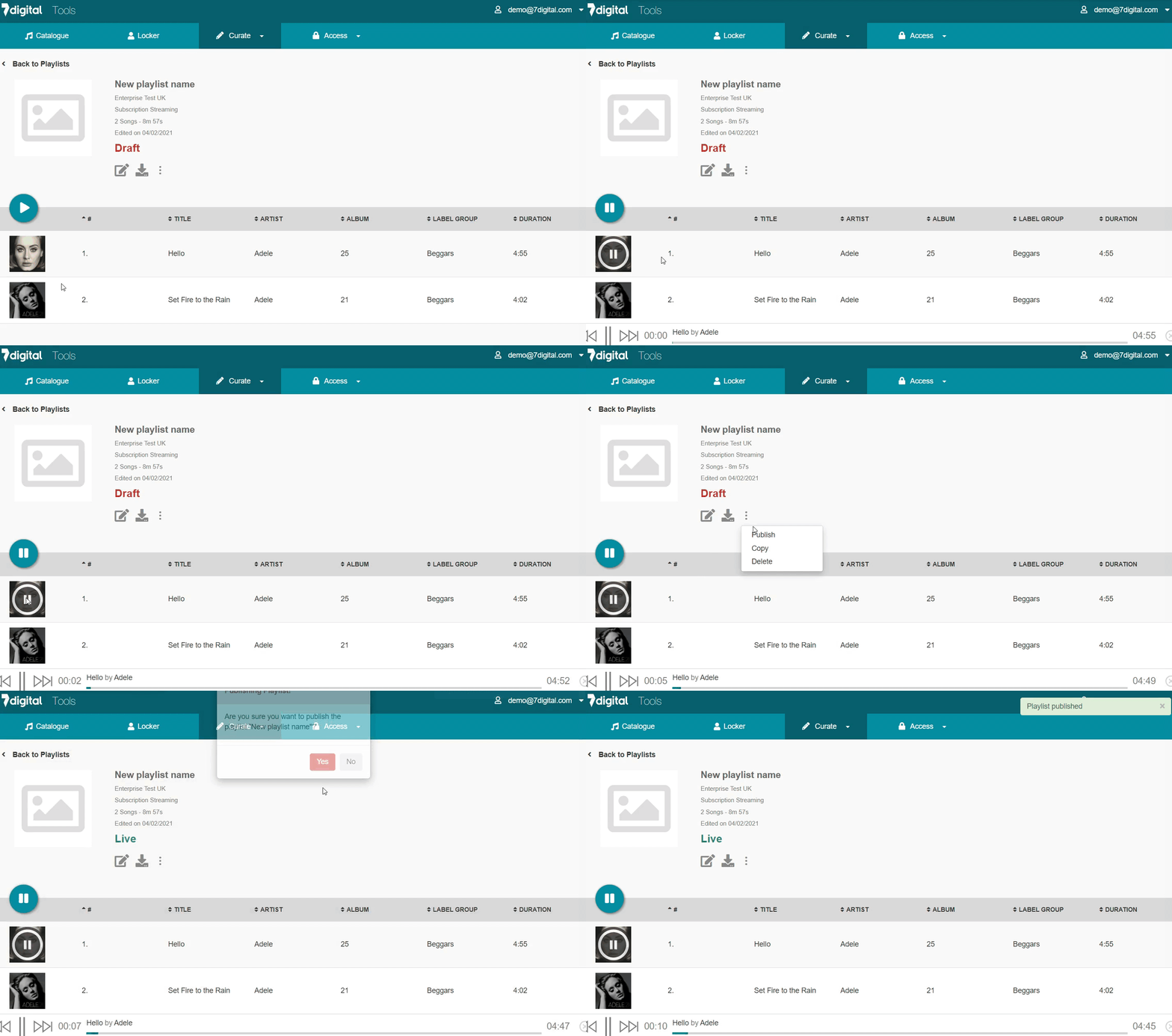
You can also preview the songs in your playlist by hovering over the album art and clicking on the ‘Play’ button. Once you have finalised your playlist and to make the playlist available through the API, click on ‘Publish’. Additionally, you can also make a copy, delete and un-publish playlists.
If you have already created playlists in Spotify, follow the steps below to import these over to the MassiveMusic Playlist tool:
STEP 1
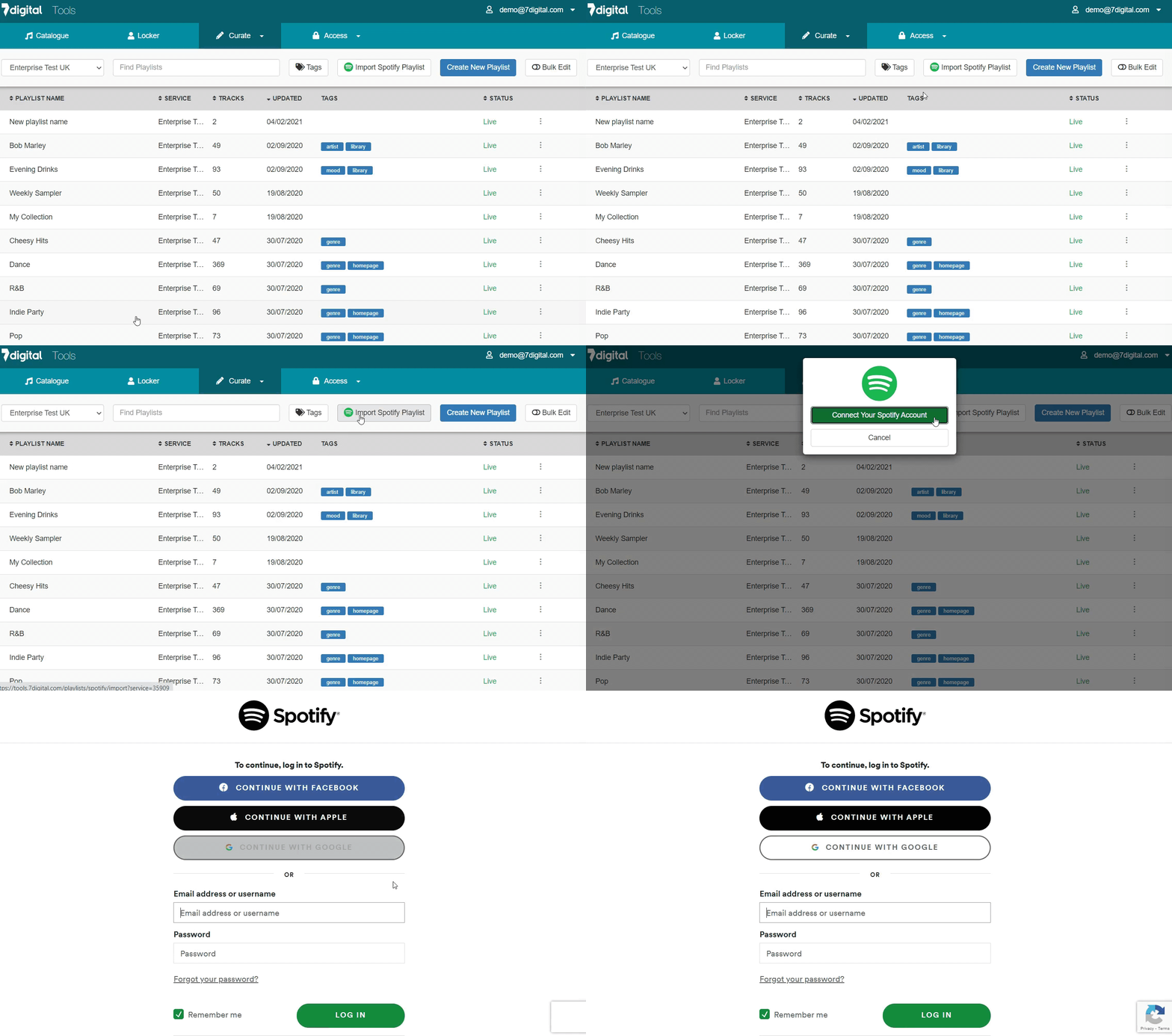
Once you have logged into the MassiveMusic Playlist Tool, select the “Import Spotify Playlist” button. Click on the “Connect Your Spotify Account” button, and proceed to enter your Spotify credentials.
STEP 2
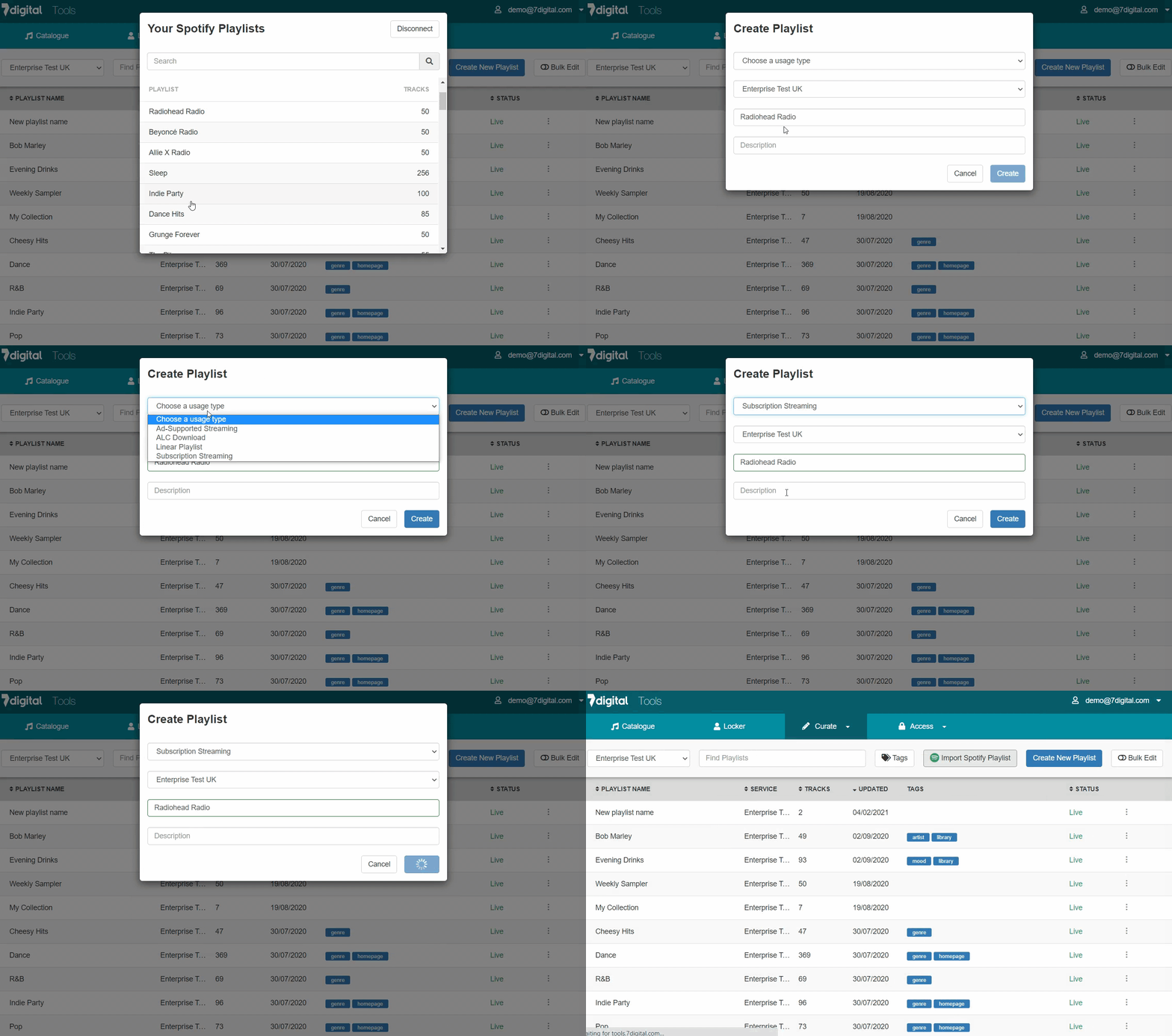
Once your Spotify account has been connected, you will see a list of playlists which you have created and listened to most recently. Select the playlist you would like to import to the MassiveMusic Playlist Tool.
To complete the import, select the intended use of the playlist (eg, download, subscription streaming or ad-supported streaming) and provide a name and description of it. Click the “Create” button to continue.
STEP 3
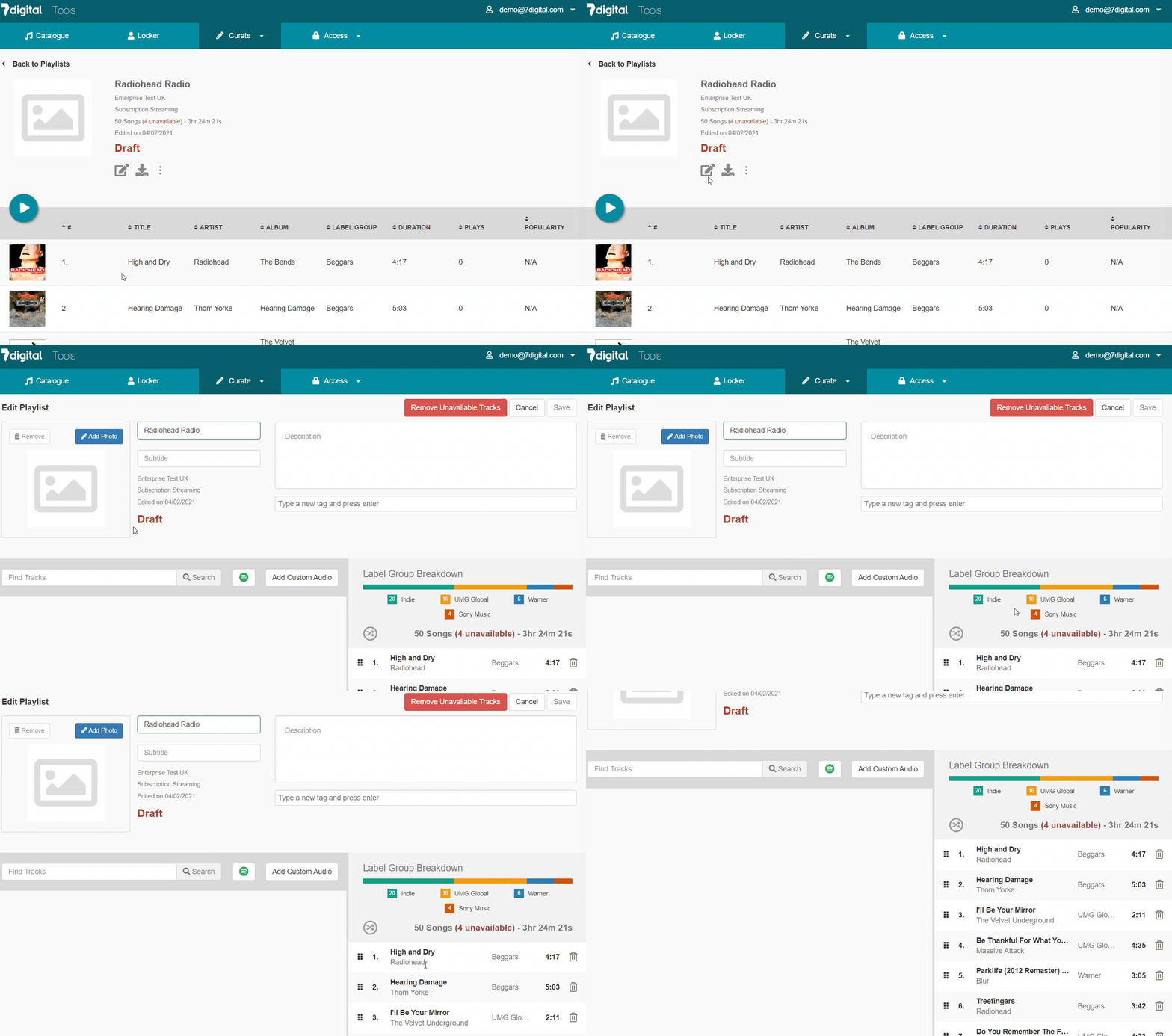
All of the Spotify playlist tracks will now be imported into the MassiveMusic Playlist tool. You will see a full summary of all the tracks on this screen, tracks which are not available will be highlighted in red. You can further edit this playlist by clicking the “Edit playlist” icon as shown below.
You can retrieve a list of all playlists created using MassiveMusic's Playlist Tool (or directly via the Playlist API) by using the following endpoint:
| Attribute | Type | Description |
|---|---|---|
| country* | string | The ISO 2-character code your oauth_consumer_key has access. |
| status* | string | The Current status of the playlist. Option of Published or Draft. If attribute is left out, this will only retrieve playlists which have been 'published'. |
For any given playlist, you can then retrieve all the playlist details including the individual trackId's and titles by using the following endpoint:
| Attribute | Type | Description |
|---|---|---|
| country* | string | The ISO 2-character code your oauth_consumer_key has access. |
All trackId's returned by this endpoint are streamable via the various streaming endpoints, depending on your service type. To learn more about streaming, see About the Media Delivery API.
Over time tracks can be requested to be taken down by a label/supplier. It is MassiveMusic's responsibility to remove such tracks from the platform so that you do not risk copyright infringement. Taken down tracks will not be playable within any of the playlists which you have already created.
Follow the steps below to help identify the playlists where a track has been removed and find a replacement:
STEP 1
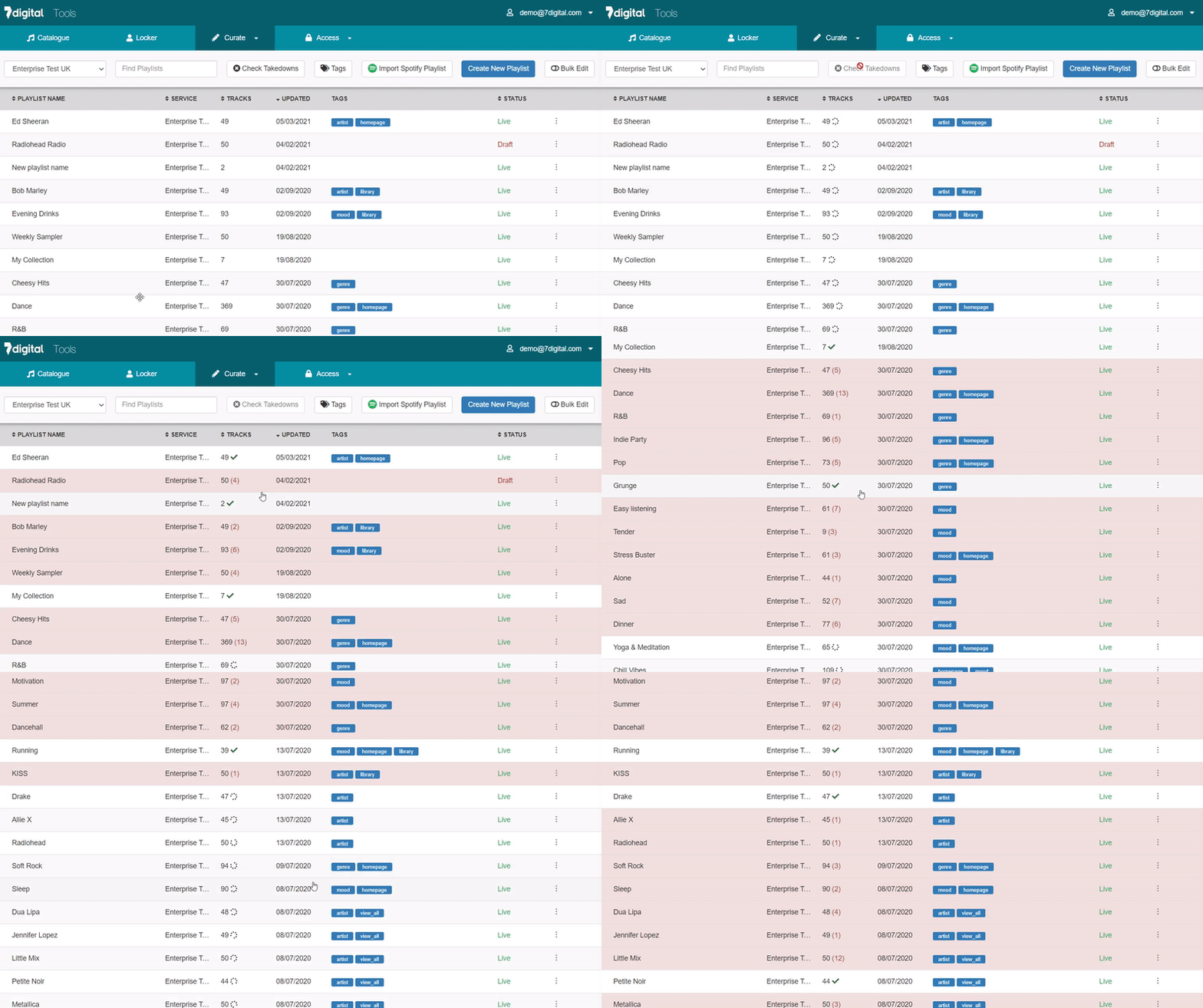
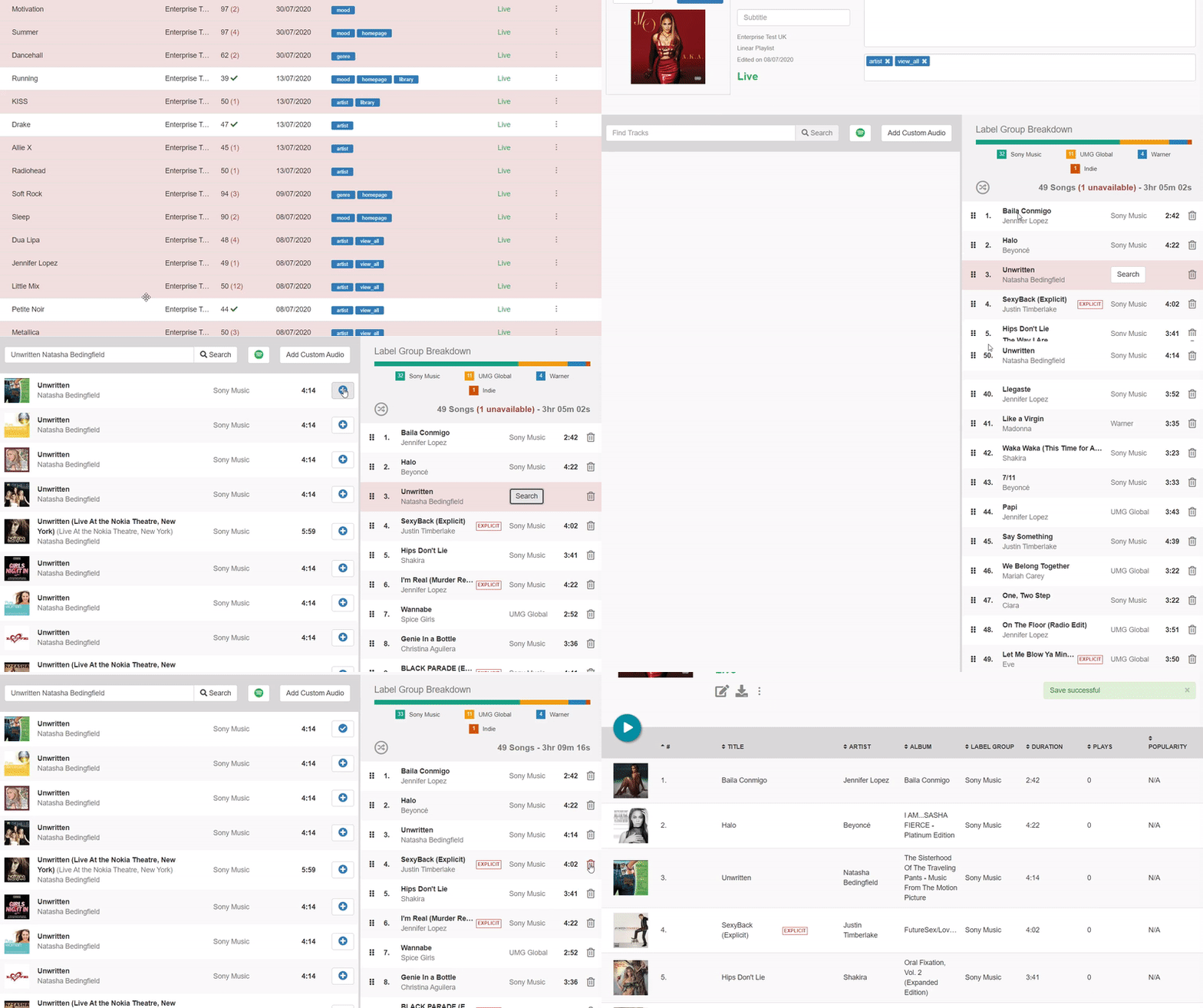
To help identify playlists which contain a taken down track, click the "Check Takedowns" button. Any playlists which contain taken down tracks will be highlighted in red along with the number of tracks which have been removed.
STEP 2
Labels often request takedowns due to tracks changing ownership from one supplier to another. In this case, you may be able to find a like for like replacement for the track on the MassiveMusic platform. To do this, select the search button next to the highlighted track. This will search the MassiveMusic platform for tracks with the same title and artist name. All matching results will be presented in the table on the left, click the "+" button to add the track to your playlist.
Please note
- New tracks are added to the bottom of the playlist, so you may wish to move this to the correct position within the playlist.
- You will also need to remove the highlighted track by clicking the trash can icon.
Updated 11 months ago